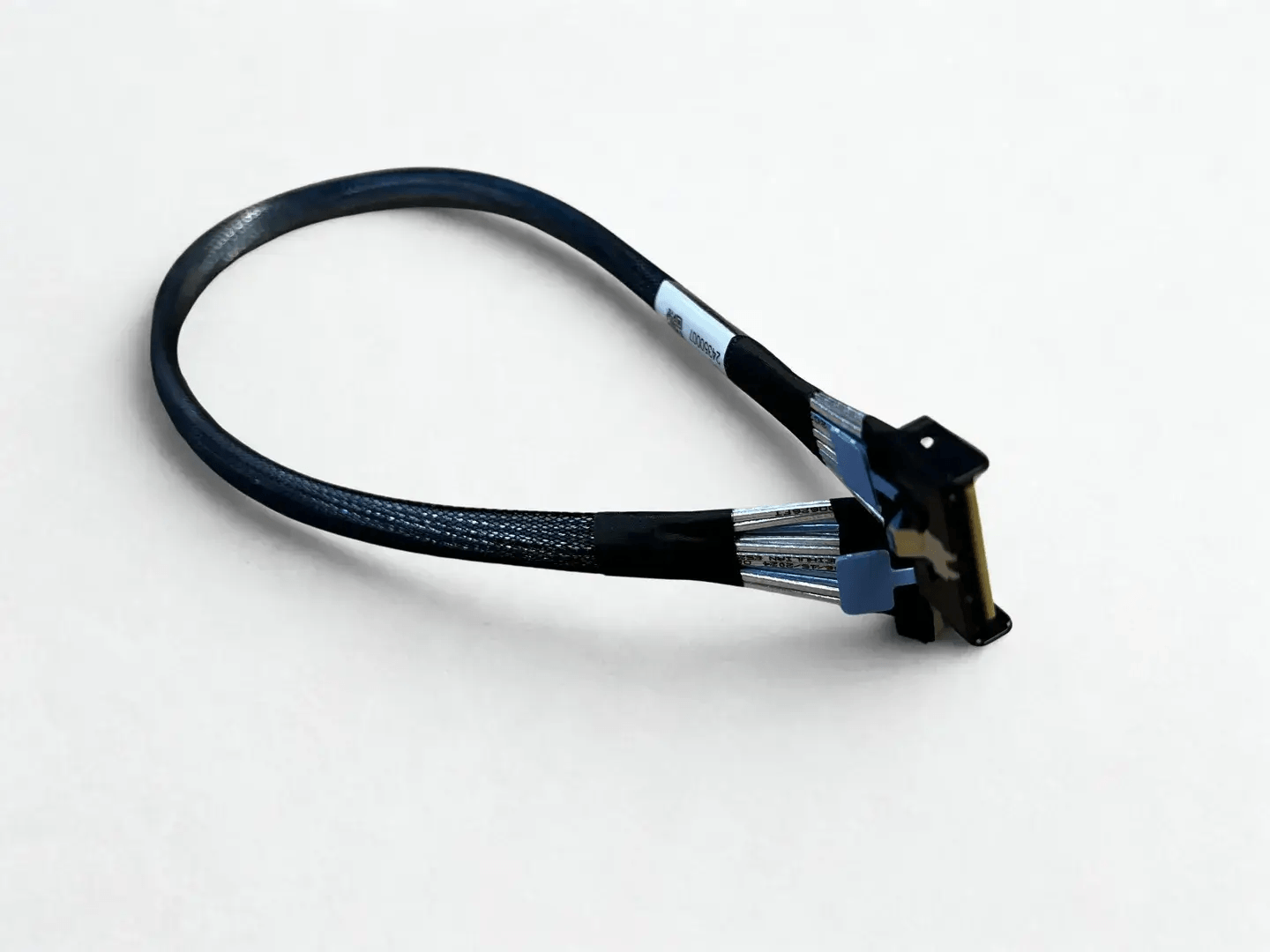
How To Route SlimSAS Cables Without Restricting Airflow Or Speed
SlimSAS was designed to enable high bandwidth connectivity in dense systems, but its advantages only hold if cables are routed correctly. Poor routing can block airflow, create thermal hotspots, and degrade signal integrity at PCIe Gen 4 and Gen 5 speeds. Proper SlimSAS routing balances electrical performance and thermal efficiency by keeping paths short, clean, and mechanically stable.
Start with Intentional Route Planning
Before installing cables, plan the routing path based on chassis airflow direction and component layout. Most servers rely on front-to-back airflow, which means anything crossing that path becomes an obstruction.
Route SlimSAS cables along chassis edges, sidewalls, or dedicated cable channels rather than across open airflow zones. Planning first prevents last-minute routing decisions that compromise cooling or force tight bends.
Keep Cable Runs Short and Direct
Shorter cable runs improve both signal integrity and airflow.
At high speeds, every extra centimeter adds insertion loss and reduces margin. Excess length also creates slack that tends to drift into fan paths or heat sink zones.
Use the shortest cable length that allows relaxed routing without tension. Avoid looping or coiling excess cable inside the chassis, especially near fans or CPUs.
Maintain Proper Bend Radius at All Times
SlimSAS cables are compact but still sensitive to mechanical deformation.
Sharp bends alter impedance and can introduce reflections, especially near the connector overmold. As a general rule, maintain a bend radius of at least ten times the cable diameter.
Pay special attention to the first few centimeters after the connector. This is where stress is most likely to cause signal integrity problems.
Route Away from Fans and Heat Sinks
Even thin cables can disrupt airflow when placed incorrectly.
Do not route SlimSAS cables directly in front of intake or exhaust fans. Avoid draping cables over CPU heat sinks, memory banks, or PCIe cards with active cooling.
When crossing airflow paths is unavoidable, cross briefly and at a shallow profile, keeping the cable tight to the chassis surface rather than suspended in open space.
Bundle Lightly and Only when Necessary
Cable organization helps airflow only if done correctly.
Use soft Velcro ties instead of zip ties. Tight compression can deform shielding, increase crosstalk, and trap heat. Bundle cables loosely and only when they share the same destination or path.
Avoid creating dense cable bundles that form a wall in the airflow path. Spacing between bundles allows air to pass through more freely.
Separate SlimSAS from Power Cables
High-speed SlimSAS links are sensitive to noise coupling.
Keep data cables physically separated from power harnesses, VRM cabling, and fan power leads. If crossing is required, cross at a right angle and keep the interaction short.
This separation improves both signal integrity and thermal behavior by reducing localized heating and EMI.
Manage Breakout Cables Carefully
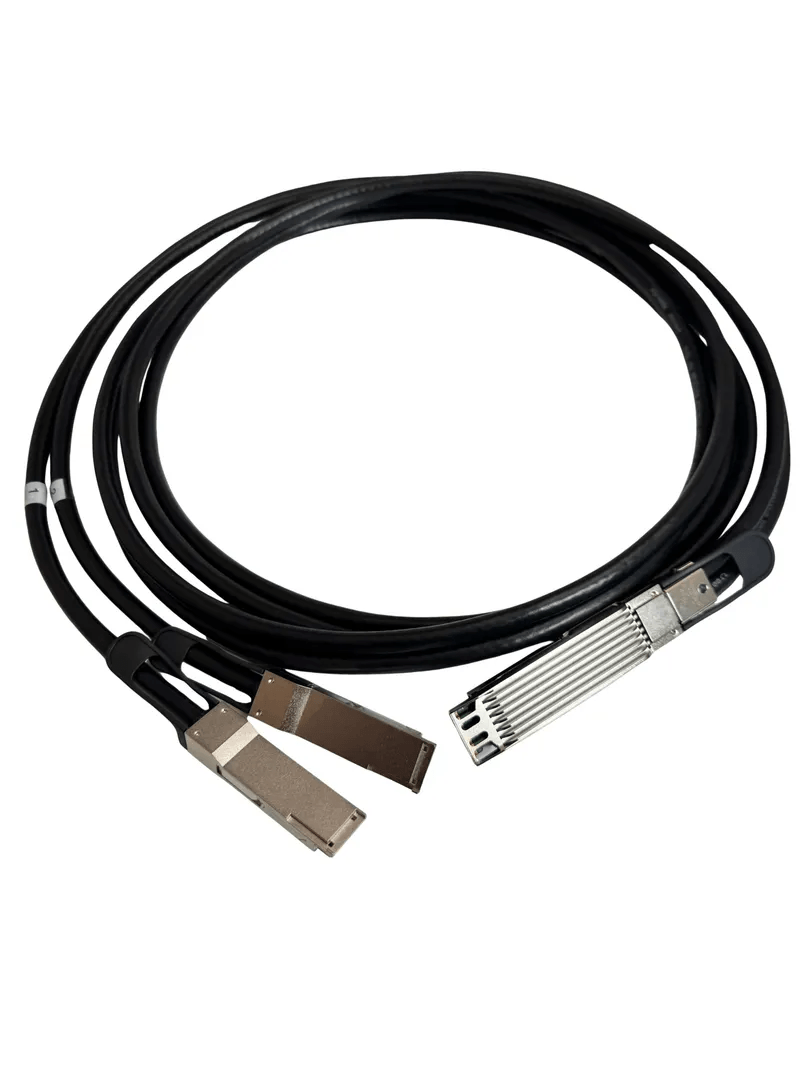
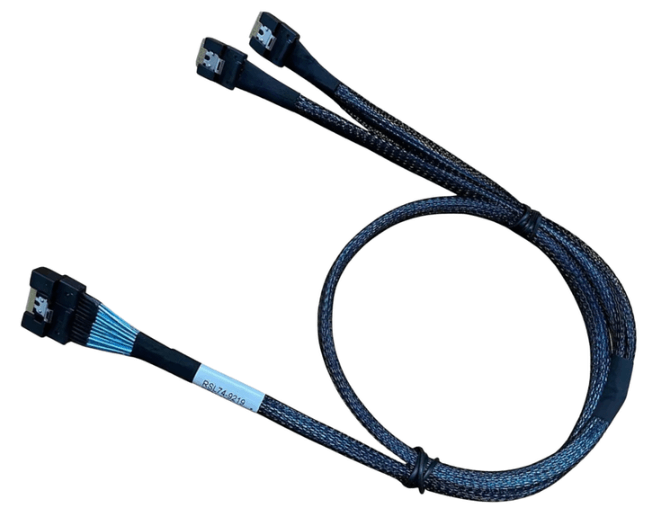
Breakout SlimSAS cables require extra attention because multiple branches can easily sprawl into airflow zones.
Route the main trunk first, then fan out branches cleanly along predefined paths. Keep branch lengths balanced and avoid stacking multiple connectors in the same airflow-critical area.
Poorly managed breakouts are one of the most common causes of airflow restriction in dense storage systems.
Provide Strain Relief without Restricting Airflow
Cables should be supported, but not constrained.
Allow SlimSAS cables to rest naturally without pulling on connectors. Avoid rigid clamps that pinch the cable or force abrupt direction changes.
Proper strain relief reduces mechanical stress while maintaining consistent geometry and clean routing.
Label Cables for Serviceability
Labeling does not directly affect airflow or speed, but it prevents future routing mistakes.
Clear labels reduce the chance that a technician will reroute a cable incorrectly during maintenance. Even small routing changes can impact airflow and signal integrity at high speeds.
Validate Thermals after Installation
After routing is complete, validate airflow and temperatures under load.
Check for unexpected hot spots near cable paths. Monitor drive, CPU, and PCIe device temperatures during sustained workloads. If temperatures rise unexpectedly, reassess cable placement before assuming cooling hardware is insufficient.
Design with Future Speeds in Mind
PCIe Gen 5 and beyond leave even less margin than Gen 4.
Routing SlimSAS cables with extra discipline today reduces rework later. Clean, short, well separated routes that preserve airflow will scale better as signaling speeds increase.
Common Routing Mistakes to Avoid
Frequent causes of airflow and performance issues include:
-
Running cables directly across fan intakes
-
Tight bends near connectors
-
Excess slack bundled in open airflow paths
-
Over-tightened ties compressing the cable
-
Breakout branches crossing heat sinks
Avoiding these mistakes resolves most routing related issues.
FAQ (Frequently Asked Questions)
Can SlimSAS routing affect performance even with good cables?
Yes. Poor routing can cause both thermal throttling and signal integrity degradation.
Is shorter always better for SlimSAS cables?
Shorter is better electrically, as long as it does not introduce strain or sharp bends.
Do SlimSAS cables block airflow less than older cables?
Yes, but improper routing can still negate that advantage.
Why do routing issues sometimes appear only under load?
Thermal expansion and higher power draw reduce margin in poorly routed systems.